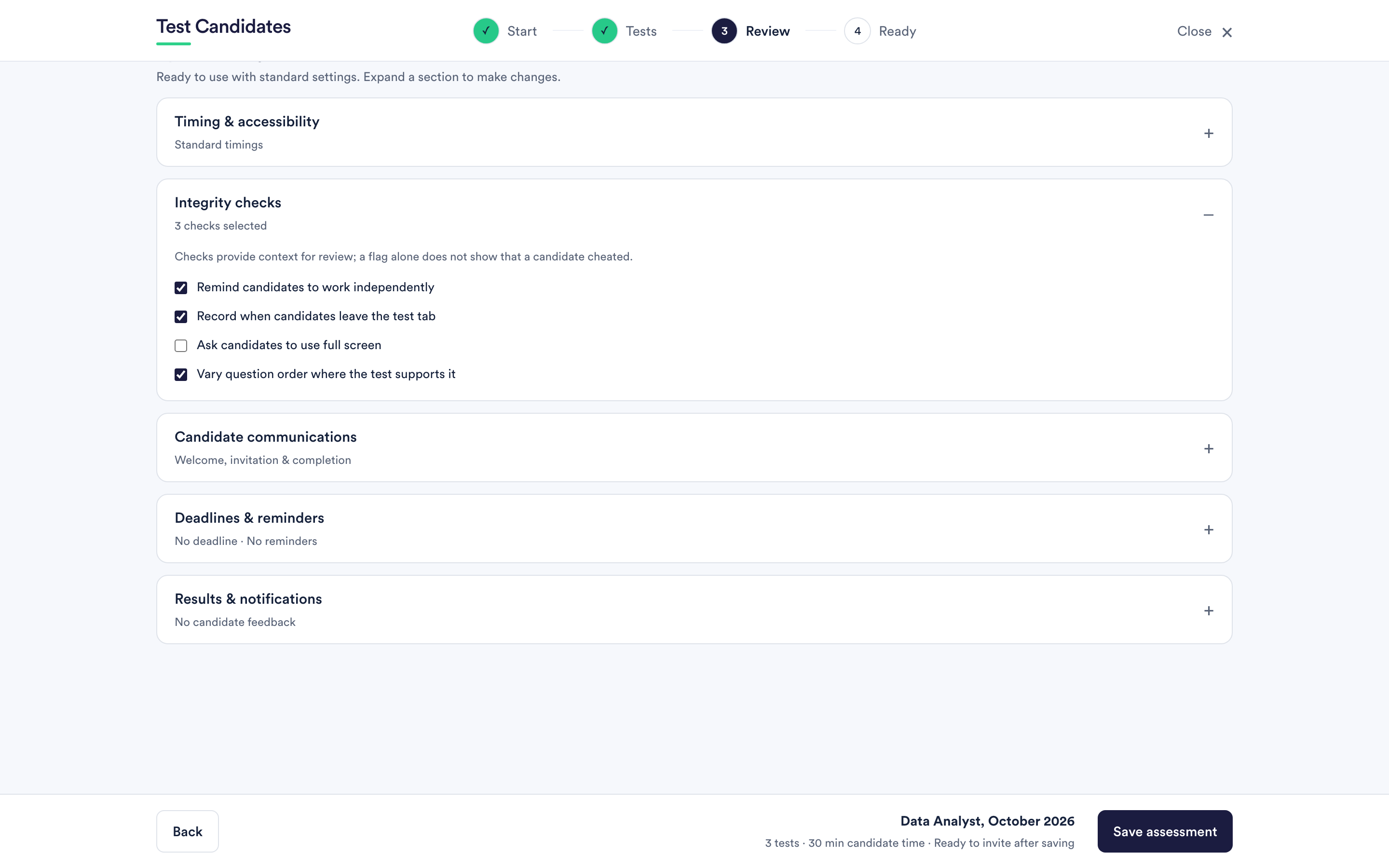
Under Optional settings on the Review step, expand Integrity checks. The panel lists every protection on the test: the ones that are always on, ticked and marked Always on, and the ones you choose.
Always on, for every test
These apply to every test, with nothing to turn on and nothing to turn off.
A warning and an agreement before each test. Candidates read: "Complete this test on your own. Do not use ChatGPT, Claude, Gemini, Copilot or any other AI tool, AI browser extension or AI agent, and do not get help from another person or website. Stay on this page until you finish. The employer may ask you to confirm your result with a supervised test." They tick a box to agree to complete the test on their own before it starts.
Copy and paste blocked. Candidates cannot select, copy or right-click the questions, and cannot paste into the test. Attempts are counted.
The question is hidden when the candidate leaves the window. If a candidate clicks into another window or app, the question is covered with "Return to the test to continue". The clock keeps running.
Print Screen and Mac screenshot keys recorded. On Windows, the Print Screen key covers the question for a moment and is counted. On a Mac, the question is covered while Cmd and Shift are held together, which is how the Mac screenshot shortcuts start, and the press is counted.
Tab switches recorded. How many times, and for how long, the test tab was not the visible one.
Automated-answering signals recorded. Signs that software rather than a person was answering, for example answers clicked without the pointer moving to them first.
A notice for AI tools. The test page tells AI assistants and browser agents not to answer the questions or act for the candidate.
The checks you choose
Record when the mouse leaves the test. Counts how often the pointer left the test area.
Ask candidates to use full screen. Asks. It cannot force a browser to comply and it does not try to.
Vary question order where the test supports it. Shuffles the order of questions for tests built to allow it, which makes comparing answers with someone else harder.
Take camera photos. Off unless you turn it on. Before the first test, candidates see what is taken, why, who sees it and how long it is kept, and then choose Allow or Decline. With Allow, one small photo is taken every 90 seconds while each test runs. A candidate who declines can still take every test. Photos are private to your workspace, open only through links that expire after a few minutes, and are deleted after six months or when you delete the candidate. Nothing in them is analysed automatically and no face recognition is used.
The result at the top of the report
Next to the candidate's name:
- A green tick beside "Completed" means none of the checks found a warning sign. Hover over it, tap it, or move to it with the keyboard to read: "No warning signs found. Our checks look for signs of outside help, but no check can rule it out completely."
- Warning signs found, in amber with a number, means at least one check found something worth asking about. Select it to go straight to the details.
- A grey i means fewer checks were available. The test was taken before some of these checks existed, the test has no difficulty information, or a check could not run. It is not a warning sign, and it is not a clean result either.
- Camera declined appears as a plain note when the candidate chose not to use the camera. It is a fact, not a warning sign, and it does not remove the tick.
- Nothing appears while results are locked, apart from warning signs that do not depend on the answers. Some checks look at which answers were right, so like the scores they wait until you unlock the results.
The Integrity checks panel
At the bottom of the report. The summary covers the whole assessment; open View observations by test for each test on its own.
- Mouse exits and Full-screen exits read Not switched on when you did not turn that check on for the assessment. A zero means the check was on and saw nothing.
- Camera photos appears only when camera photos were on: how many photos, or that the candidate declined. A strip of the photos follows, once the result is unlocked. It is hidden while the report is anonymised.
- Tab hidden, Left the test window, Copy attempts, Print Screen and Screenshot keys (Mac).
- IP changes, Player reopened and Device.
- Cloud server: whether the test may have been answered from a cloud provider's network.
- Warning signs: how many were found, with the details listed above the per-test view.
Warning signs
Each warning sign says what was recorded on which test, and nothing more.
- Left and came back right. The candidate left the test while a question was open, came back and answered it correctly, on several questions.
- Too fast to read. Correct answers to hard questions in less time than it takes to read them. The time allowed for each question comes from its length.
- Odd answer pattern. Many more of the harder questions right than the easier ones. This only appears on tests that mix easier and harder questions.
- Possible automated answering. The browser reported signs that software, not a person, was answering.
- Answered from a cloud server. The test may have been answered from a cloud provider's network, which is where AI agents that run their own browser usually sit. A VPN, a remote desktop or some work networks can look the same.
- Tried to copy. Several attempts to copy, cut, paste or right-click were blocked.
- Print Screen pressed. The Print Screen key was pressed during the test.
- Screenshot keys pressed. The Mac screenshot keys were held during the test.
- Long time away. Two minutes or more away from the test.
- Switched away. Switched to another tab or window five times or more.
- Mouse left the test. Shown as a warning sign only when the candidate also spent a long time away or switched away. On its own it is common, for example with a second screen.
- Test reopened. The test was closed and opened again more than once.
Leaving full screen and a change of internet connection are shown in the panel as facts, not as warning signs. Phones often change connection on their own.
Network lookups use IP Geolocation by DB-IP, licensed under CC BY 4.0. No candidate's address is sent to anyone to make the check.
What a flag means
A warning sign is a reason to ask, not proof. It does not show that a candidate cheated.
A candidate who left the window may have had a message pop up, answered the door, or checked on a child. A fast correct answer can come from someone who has met that kind of question many times. A cloud server can be a VPN. A candidate with no warning signs may still have had help. The checks tell you where to ask a question, not what the answer is.
Using the checks well
- Treat a warning sign as a reason to ask, in the same tone you would ask about anything else on a CV. An accusation is not a fair question.
- Look at the whole report next to it. The every answer in order view shows time spent per question.
- Be consistent. If you only look at warning signs for candidates you already had doubts about, the checks are confirming your doubts rather than testing them.
What none of them do
- Some screenshots still get through. Covering the question while Cmd and Shift are held stops many Mac screenshots, but a screenshot tool that starts another way, or does not take focus from the test, is not seen.
- A photo of the screen gets round everything here. So does a second device or a second person in the room, out of the camera's view.
- Careful automation can look human. The automated-answering check looks for common signs of software in control. A tool built to imitate a person may not show them.
- They do not verify identity. Camera photos let you see who was at the screen; nothing compares them with anyone automatically.
If you need certainty about who sat the test and how, the answer is a supervised stage later in the process.
See can candidates cheat? for the honest version of that question.
Telling candidates about the checks
Whatever you turn on, say so. Candidates who know a check exists behave differently from candidates who find out afterwards, and the second group is entitled to be annoyed. The welcome message on the assessment is a good place for one sentence about it. See the messages candidates receive.