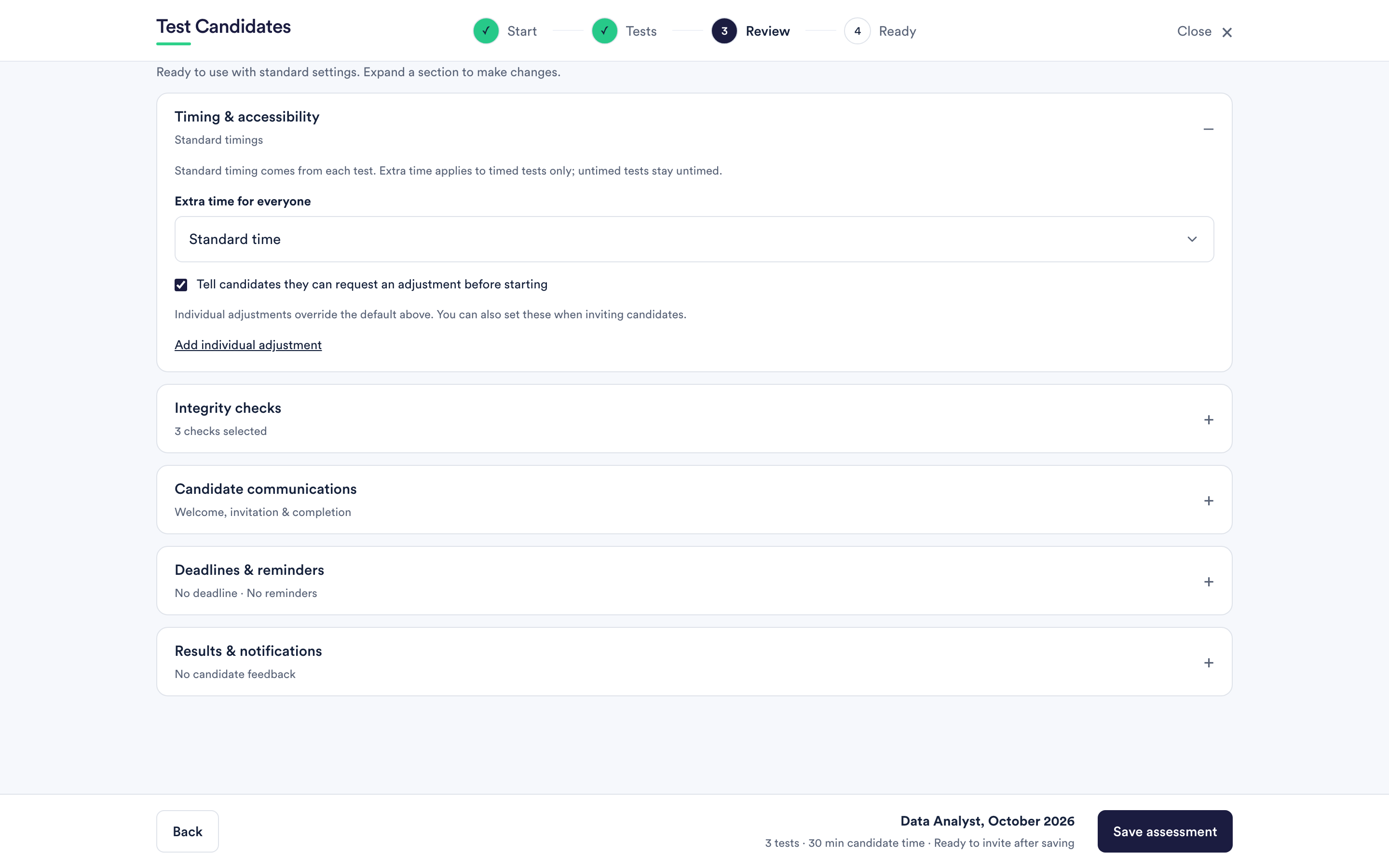
Open Optional settings on the Review step and expand Timing and accessibility.
Where the time limit comes from
Each test carries its own limit. You do not set a limit per assessment and you cannot lengthen one test without lengthening the rest. The panel lists every test in the assessment with the time it allows, so you can see the effect of any change.
Personality and drives questionnaires are untimed and stay untimed whatever you set here. There is no right answer to rush towards.
Extra time for everyone
You can add a percentage to every timed test for every candidate in the assessment. The choices are standard timing, or a fixed uplift.
This is worth considering when the role does not depend on speed. A timed test measures accuracy under time pressure; if the job never applies that pressure, the clock is measuring something you do not care about.
Extra time for one person
Below that, you can add individual adjustments by candidate email address. Enter the address the candidate will be invited on and choose their uplift. An individual adjustment overrides the assessment-wide setting for that person.
You can also set these when inviting candidates, so a request that arrives after you have built the assessment does not mean rebuilding it.
The address has to match the one they use. If a candidate registers with a different address from the one you entered, the adjustment does not find them.
Letting candidates ask for extra time
There is a setting that tells candidates, before they start, that they can request an adjustment. Turning it on is usually the right call: it is the only way most candidates will know it is possible, and it puts the request in front of you before the test rather than as a complaint afterwards.
What candidates see
A candidate with extra time sees it on the instructions page for each test and turns it on before starting. Candidates can also turn on single-key answering from the same page. The candidate side of this is described in extra time and accessibility settings.
Changing the timing later
Timing settings stay editable after candidates have started. A change applies to tests not yet begun; it does not reach back into a test someone is already sitting.