An assessment is a named set of tests in a fixed order, with its own link, its own candidates and its own settings. Building one takes a couple of minutes.
Choose Create Assessment from your assessments page. The builder has four steps: Start, Tests, Review, Ready.
Step 1: how you want to start
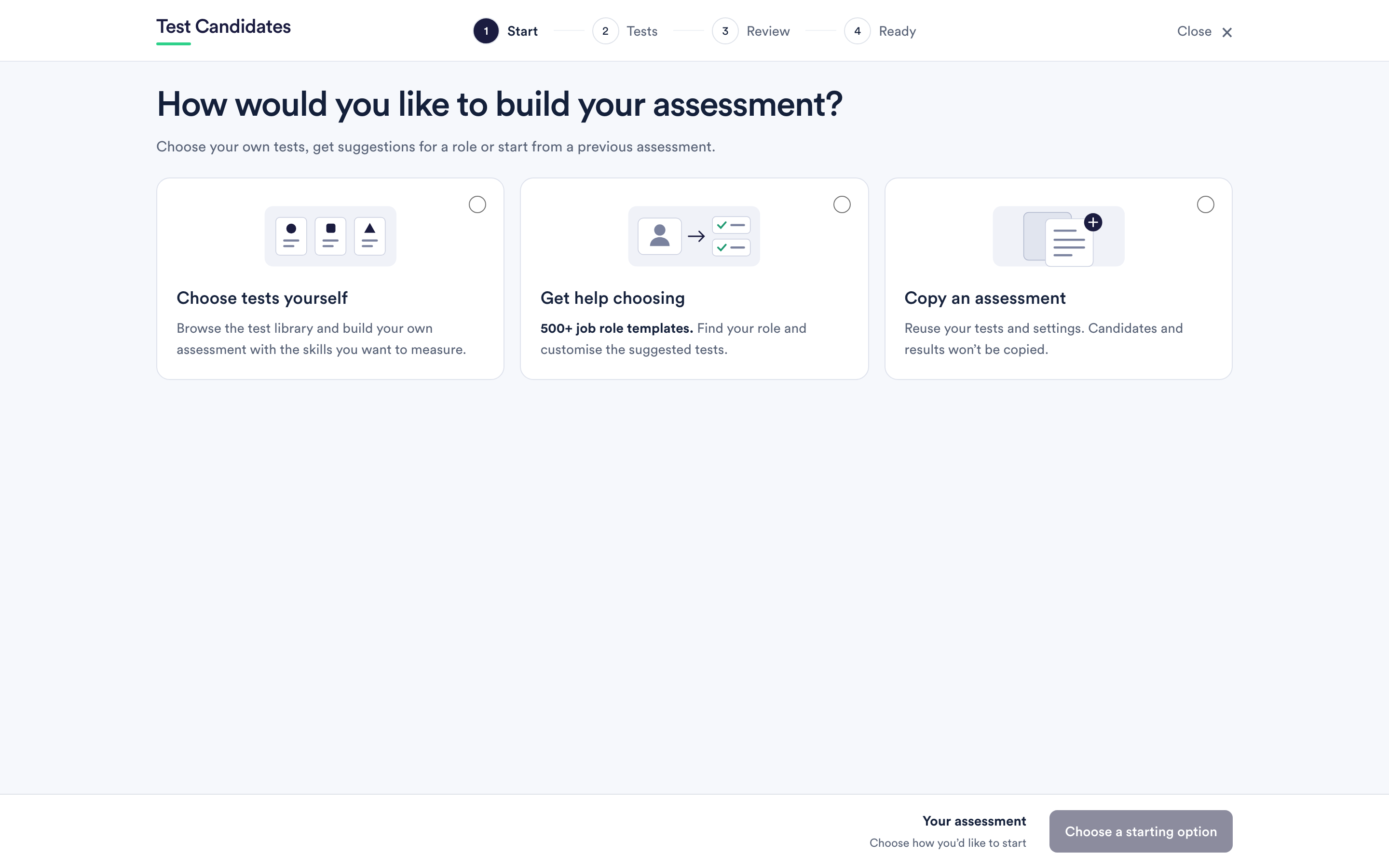
Four ways in:
- Choose tests yourself. You browse the library and pick. Best when you already know what the role needs.
- Use a role template. You search a catalogue of job role templates, and the template suggests tests for that role. You can add or remove any of them in the next step. See start from a job role template.
- Describe the role. Paste a job advert or type a role title; the builder suggests tests and drafts questions about the role for you to edit. See build an assessment from a job advert.
- Copy an assessment. Reuses the tests and settings of one you have already built. Candidates and results are not copied. See edit, duplicate or archive an assessment.
You also name the assessment here. Use a name you will recognise in three months: the role, and the hiring round or location if that helps.
Step 2: choosing the tests
Search by test name or by skill, filter by test type and difficulty, and add what you want. Your selection builds up on the right with a running candidate time total, which is what the whole assessment will take someone.
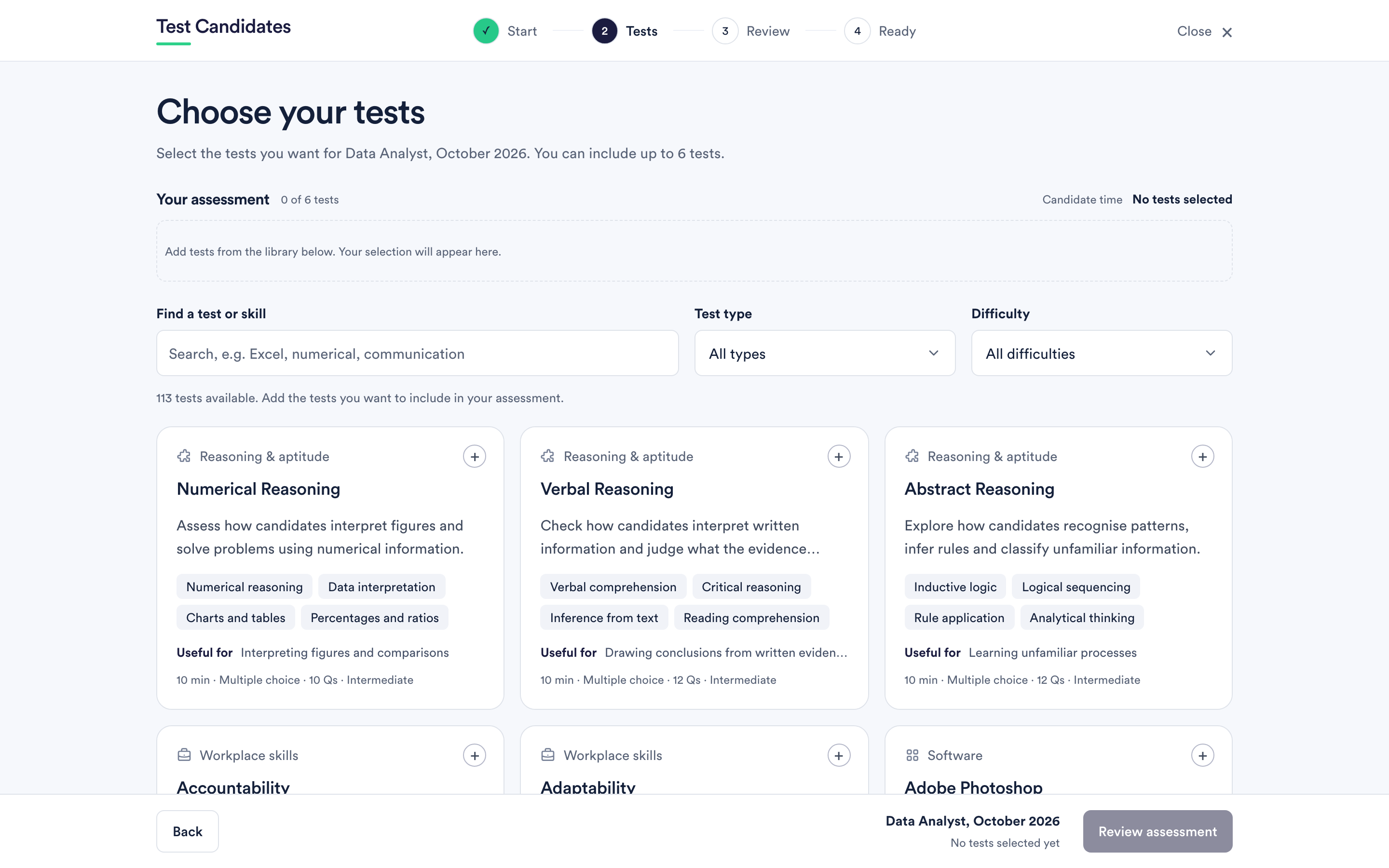
There is a limit on how many tests one assessment can hold, and the builder shows it as you go. Some tests are marked as needing a plan; remove them or choose a plan to include them.
See choose tests from the library and how many tests to include.
Step 3: reviewing the assessment
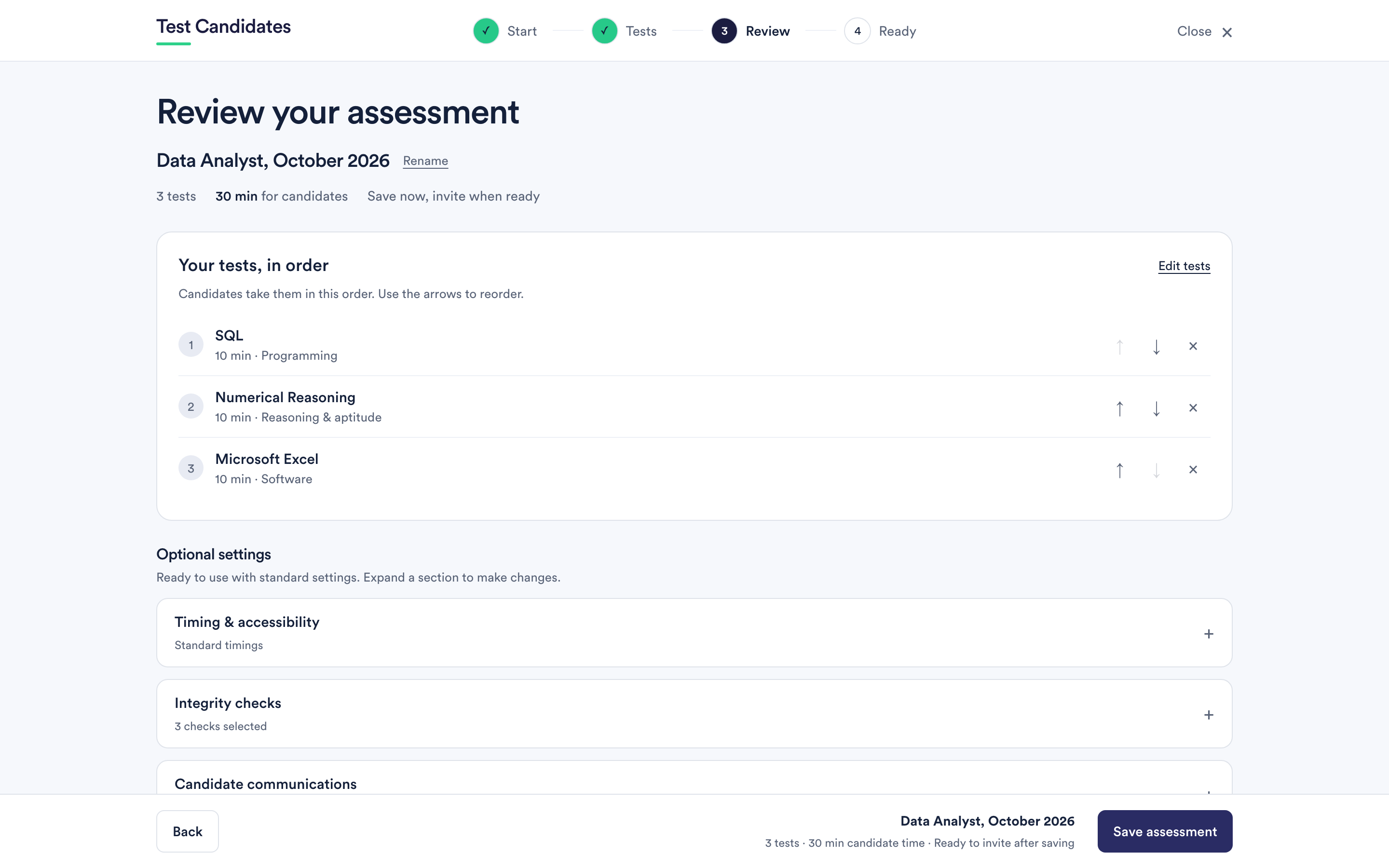
Rename the assessment, reorder the tests with the arrows, remove any you have changed your mind about, and open Optional settings if you need to change timing, integrity checks, deadlines, messages or notifications.
You can save without opening the settings at all. The standard settings are sensible and every one of them can be changed afterwards.
Step 4: ready to invite
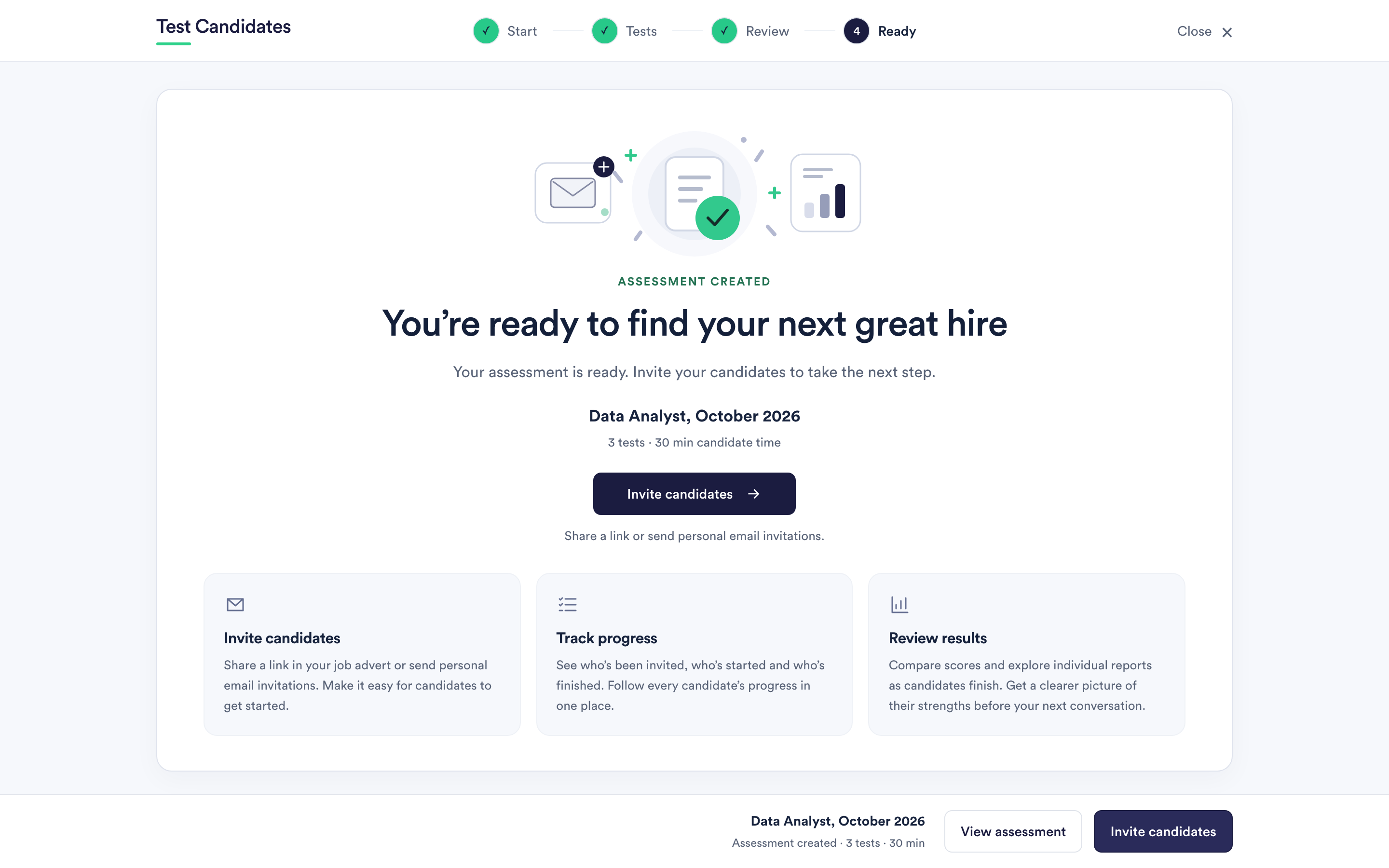
The assessment is saved and its link is live. From here you go straight to inviting candidates, or come back to it later from your assessments page.
Which team it belongs to
If your workspace uses teams, each assessment belongs to one team, or to no team. You do not choose while building it. If you are in a team, it goes into your team. If you are on All teams, it has no team, and an admin can put it in a team from the Team column on the Assessments page. See use teams to split up your workspace.
What you can change afterwards
Everything, until the first candidate takes a test. After that the tests and their order lock, and the name, deadline and settings stay editable. See edit an assessment after candidates have started.