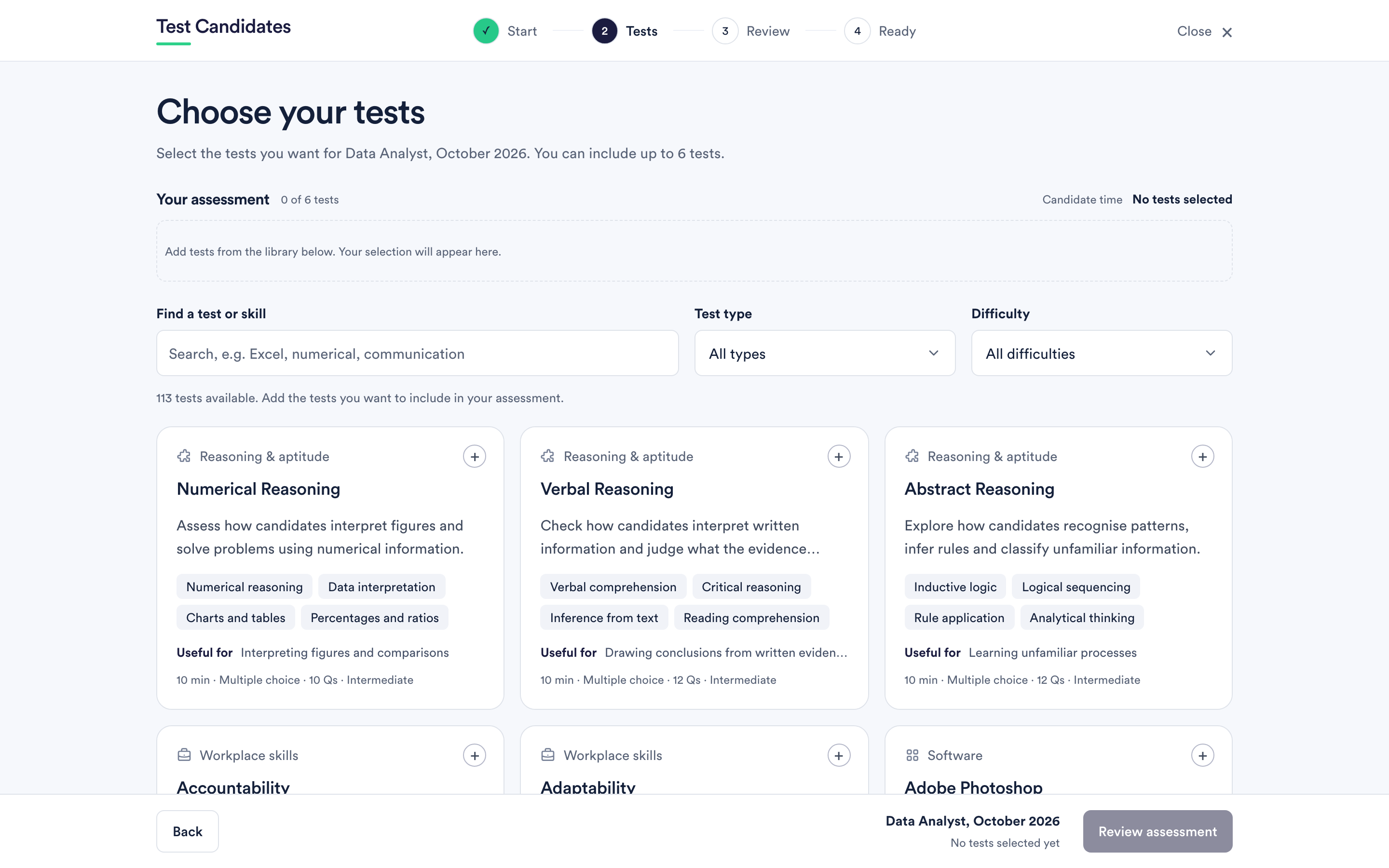
The Tests step of the builder is the whole library, filtered down to what you are looking for.
Searching the library
The search box matches test names and the skills a test measures, so searching for a skill you care about finds tests you would not have thought to look for by name. Searching for "attention to detail" or "spreadsheets" is often more productive than searching for a test title.
Filtering by category and level
Test type narrows to one type: cognitive ability, personality, soft skills, role specific, software, coding or language. Your own custom tests have a type of their own if you have any.
Difficulty narrows to Foundation, Intermediate or Advanced. Not every test exists at every level.
What a card tells you
Each card carries the category, the test name, a one-line description of what it explores, the skills it measures, who it is useful for, and a line of metadata: how long it takes, its format, how many questions it has and its difficulty.
Formats you will see are multiple choice, situational judgement, point allocation and questionnaire.
Read the full guide before you commit
Every test has its own page under Tests in the main navigation, with far more than the card: whether it suits your role, the skills it measures, a sample question you can answer yourself, how to read the result, what it does not establish, and a suggested interview follow-up.
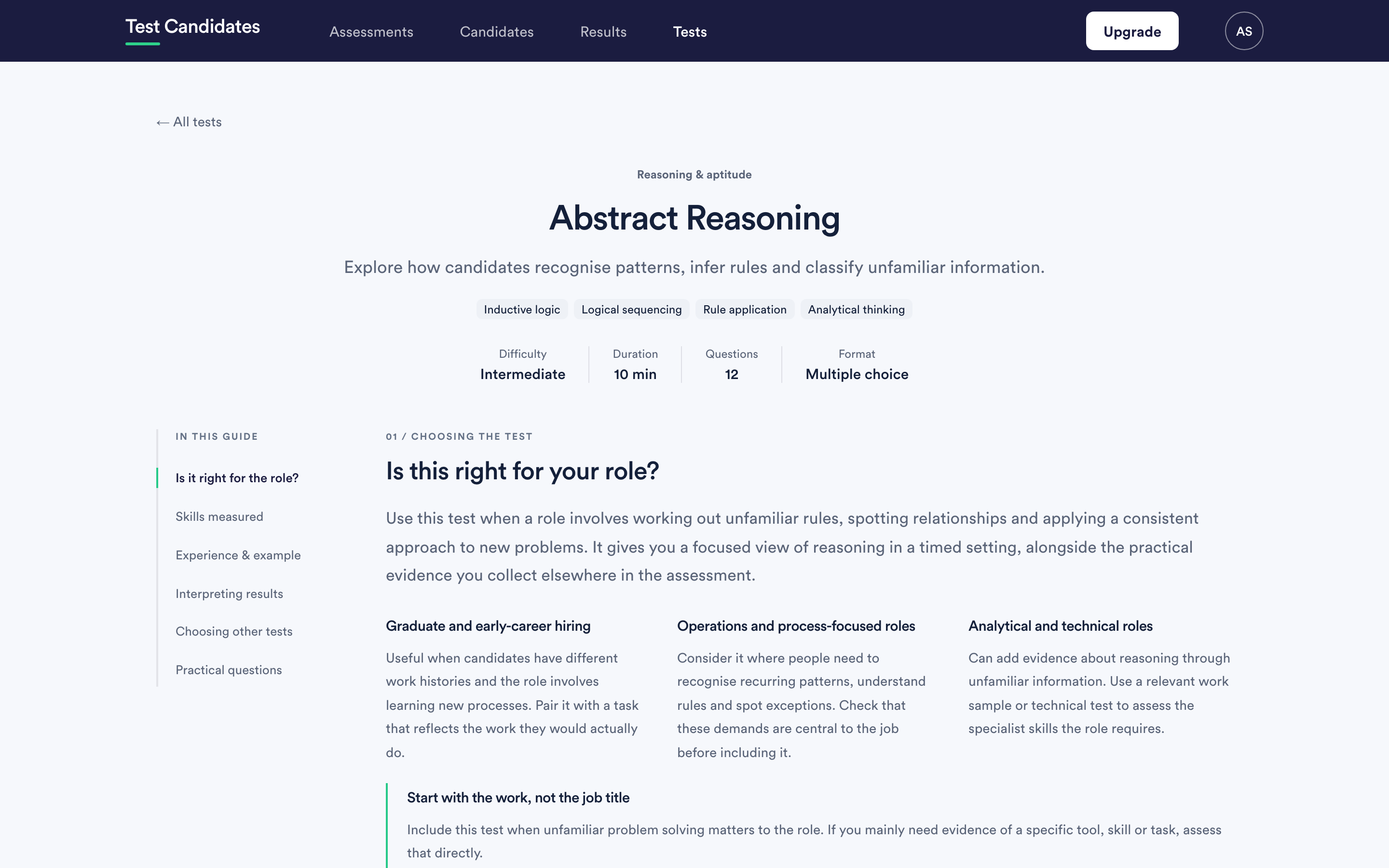
If you are choosing between two similar tests, that page is the fastest way to decide. See what tests are available.
The tests you have selected
Selected tests build up in a panel showing the order candidates will take them and a running total of candidate time. Reorder and remove on the Review step.
Some tests are marked Needs a plan. They stay visible so you know they exist, but you cannot save an assessment containing one until you have a plan that includes it.