There are three ways to get results out, for three different jobs.
A single candidate's report, as a PDF
Open the candidate and choose Download report. You get the report as a document: the overall score, each test, and the interpretation.
Use this for a hiring manager who is looking at one shortlist and does not need an account. It is also the right thing to keep if you need a record of what you saw at the time you decided.
Results as a CSV
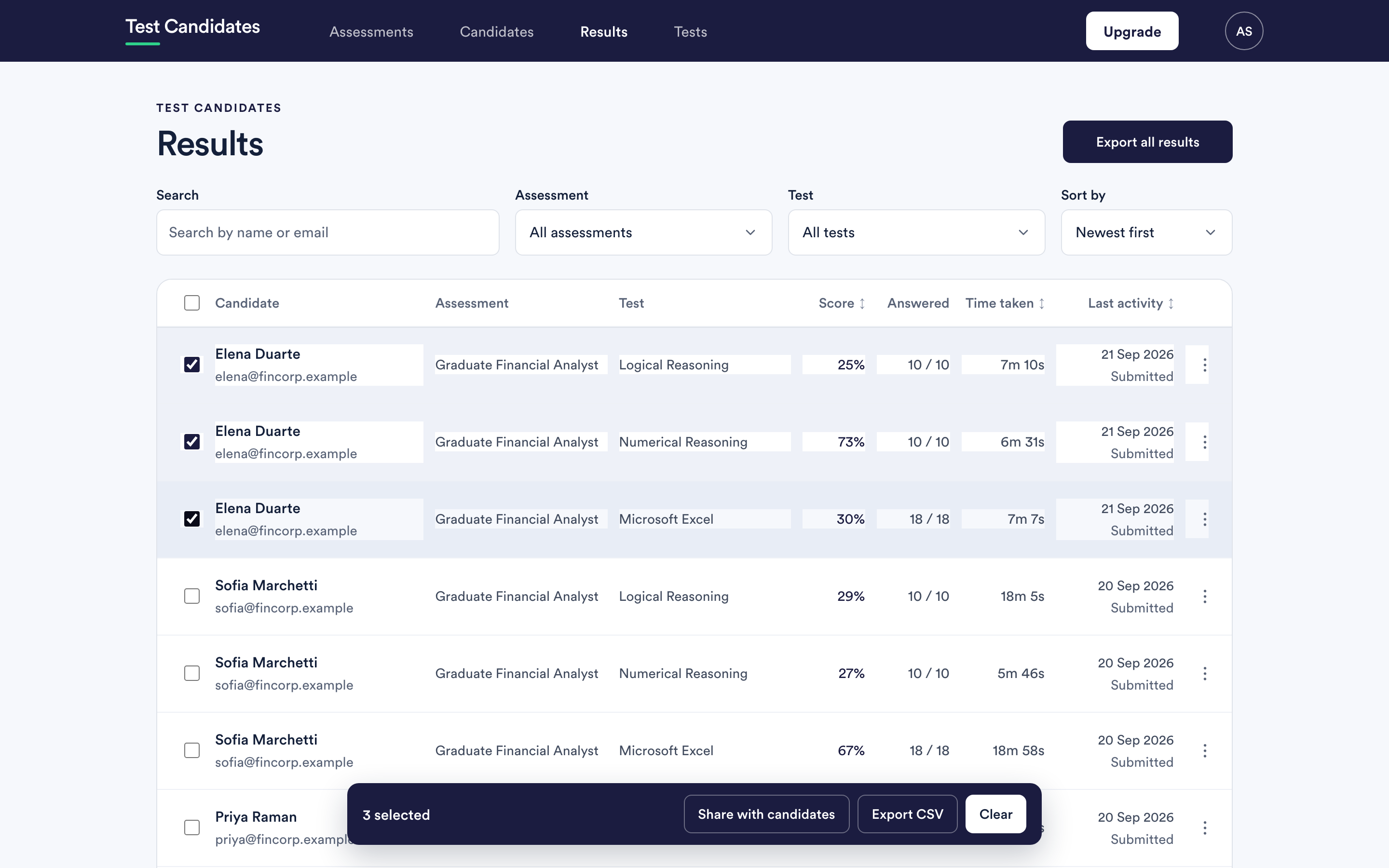
Three places, depending on the scope you want:
- Results, then Export all results, for everything.
- Results, with rows selected, then Export CSV, for a subset.
- Candidates, with rows selected, then Export CSV, for those people.
Use these for your own analysis, for a pass into a spreadsheet, or for loading somewhere else.
Exporting a comparison
From the comparison view, Export comparison gives you the side-by-side grid. Use it when the question is "which of these five", not "how did everyone do".
Exporting an assessment's data
An assessment's More menu offers Export results for that assessment alone, which saves filtering.
What is in an export
Scores, the tests they belong to, who took them, how much of each test was answered and how long it took. Locked results are not in an export, because they have not been unlocked for your organisation. Unlock them first if you need them. See unlock results.
Personality and drives profiles are descriptive rather than numeric and belong in the report rather than the spreadsheet.
Before you send a report on
An export is candidate personal data. Inside the workspace, only people who can see that assessment can see it. Everyone you email it to can see it too, permanently, and you cannot take it back.
- Send the PDF of one candidate rather than a full export, where one candidate is the question.
- Do not put a full export in a shared drive that the whole company can read.
- Keep it as long as you need it for the decision and no longer. See how long we keep results for what we tell candidates.
Automating your exports
If you want results in another system continuously rather than as files, use the API or a webhook instead of exporting by hand. See integrations overview.