Whether a candidate arrives through your link or through an invitation, they land on the same page: your candidate page. It names your company, introduces the assessment, and gets them started.
What you can change
Under the account menu, Company settings, expand Candidate page.
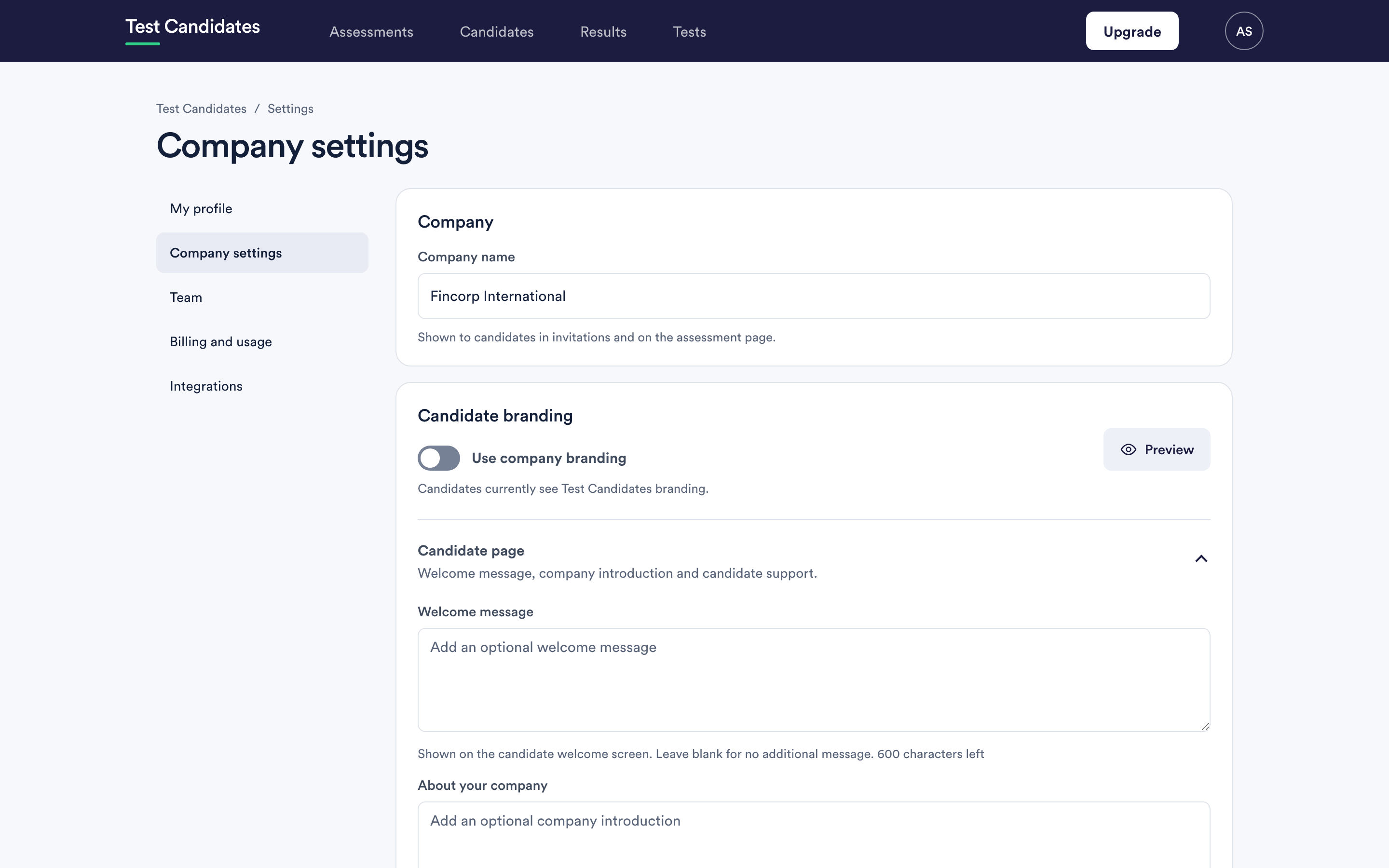
Welcome message. Shown on the welcome screen. Leave it blank and there is simply no extra message. A good one is two sentences: what the assessment is for and roughly how long it takes.
About your company. Shown below the welcome message, and hidden entirely when blank. Company settings can read a description straight off your website for you to edit.
Who candidates should contact. An address for candidates with a problem.
The contact line is the important one
It appears on the candidate page, in their assessment emails and on their help sheet. Leave it empty and candidates are told to reply to the email that invited them, which is a reasonable fallback but only works for people you invited by email.
Fill it in with a monitored address. A candidate stuck at nine in the evening with an assessment due tomorrow is the person most likely to give up, and the cheapest thing you can do about it is give them somewhere to write.
Use a shared inbox rather than an individual's address, so a holiday does not break it.
Your logo and colour
Covered in set up your company branding. Without a logo, candidates see your company name, which is perfectly presentable.
Previewing your candidate page
There is a preview on the company settings page that shows the candidate experience exactly as a candidate sees it. Use it before you invite anyone.
What you cannot change
The tests themselves, their instructions and the player are ours, and they look the same for every company. What you control is the wrapper: the welcome, the introduction, the branding and the contact route.
What candidates are told
If you want to know exactly what the candidate side says, read the candidate help centre. It is written for them, and it is the same content they are pointed at from inside the assessment.