Account menu, then Company settings. Branding is optional and everything works without it.
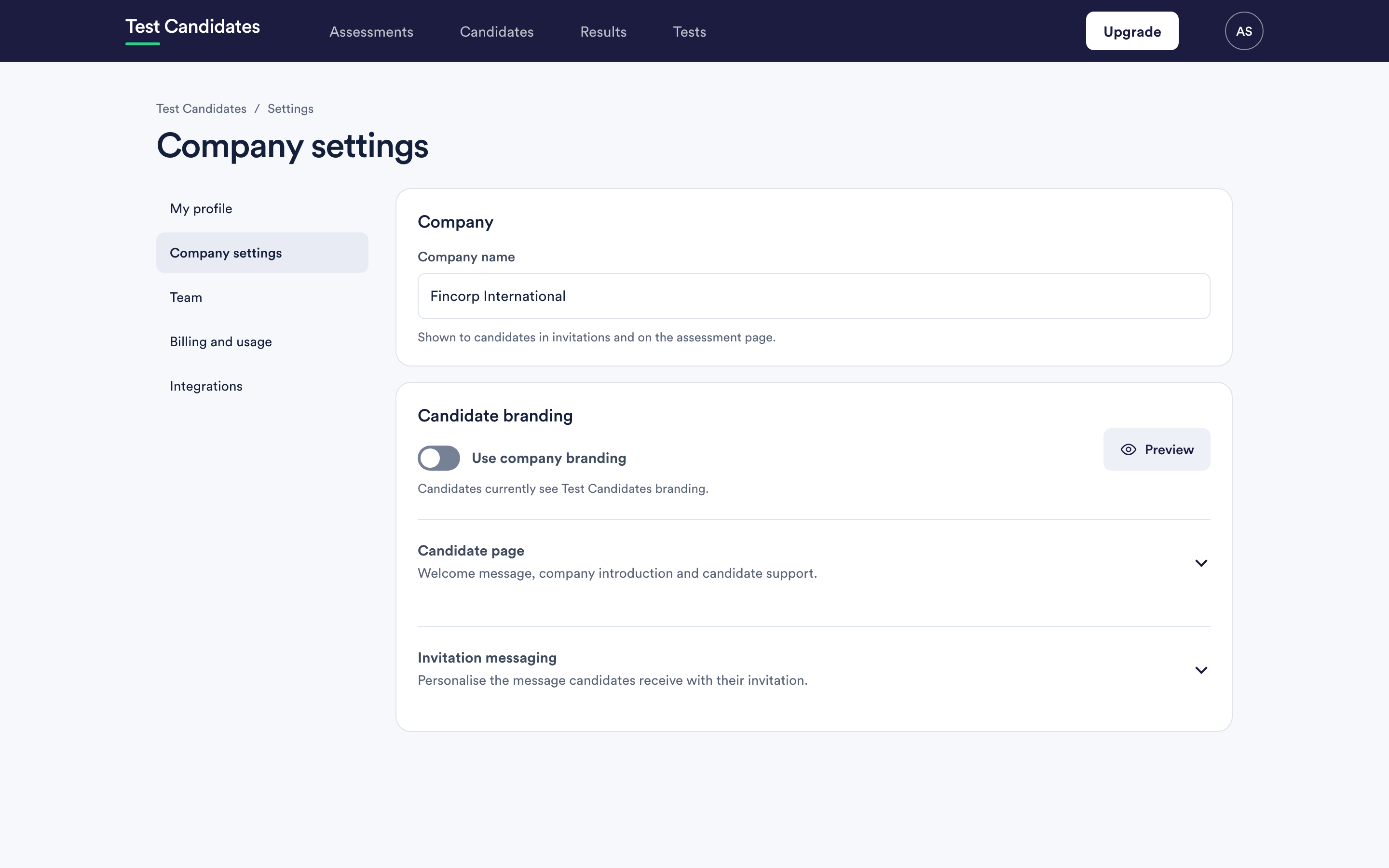
The branding toggle
Use company branding is the switch. With it off, candidates see Test Candidates branding alongside your company name, and the page says so plainly. With it on, they see your look.
Letting it read your website first
Company settings can look up your branding from your company's web address and come back with a logo and a description it found.
It is deliberately careful about this:
- It tells you where each part came from.
- When it is not confident, it selects nothing and says so, rather than applying something wrong.
- Accepting replaces the branding you have now, and it warns you before it does.
- Anything it suggests is editable afterwards, and the description becomes yours once you change it.
If the lookup takes a while it tells you that too, and you can set everything by hand instead.
Logo and colour
Upload a logo as PNG or JPG, at least 200 pixels wide. Without one, candidates see your company name, which is perfectly presentable.
Choose a brand colour, used for buttons on the candidate side once a logo is uploaded.
A practical note: candidate screens are light, so a very pale brand colour makes buttons hard to read. Pick something with contrast against white rather than the exact hex from your brand book, and check it in the preview.
Preview before you invite
There is a Preview that shows the candidate experience as a candidate sees it. Use it rather than sending yourself a test invitation: it is faster and it does not create a candidate record.
Check three things: the logo is not stretched or cropped, the buttons are readable, and your welcome message reads well at the size it is shown.
What branding does not change
The tests, their instructions and the test player. Those are ours and they look the same for everyone. What you control is everything around them.
If you leave branding off
Candidates see your company name and Test Candidates branding everywhere else. The invitation still arrives with your company name as the sender, so nobody is confused about who is hiring. It simply looks like a tool rather than like you.
Changing your branding later
You can turn branding on or change it at any time. Candidates part way through see the new branding from their next screen. Invitations already in inboxes keep the branding they were sent with.