Account menu, then People. Only admins can invite, change or remove people. Members can see the list.
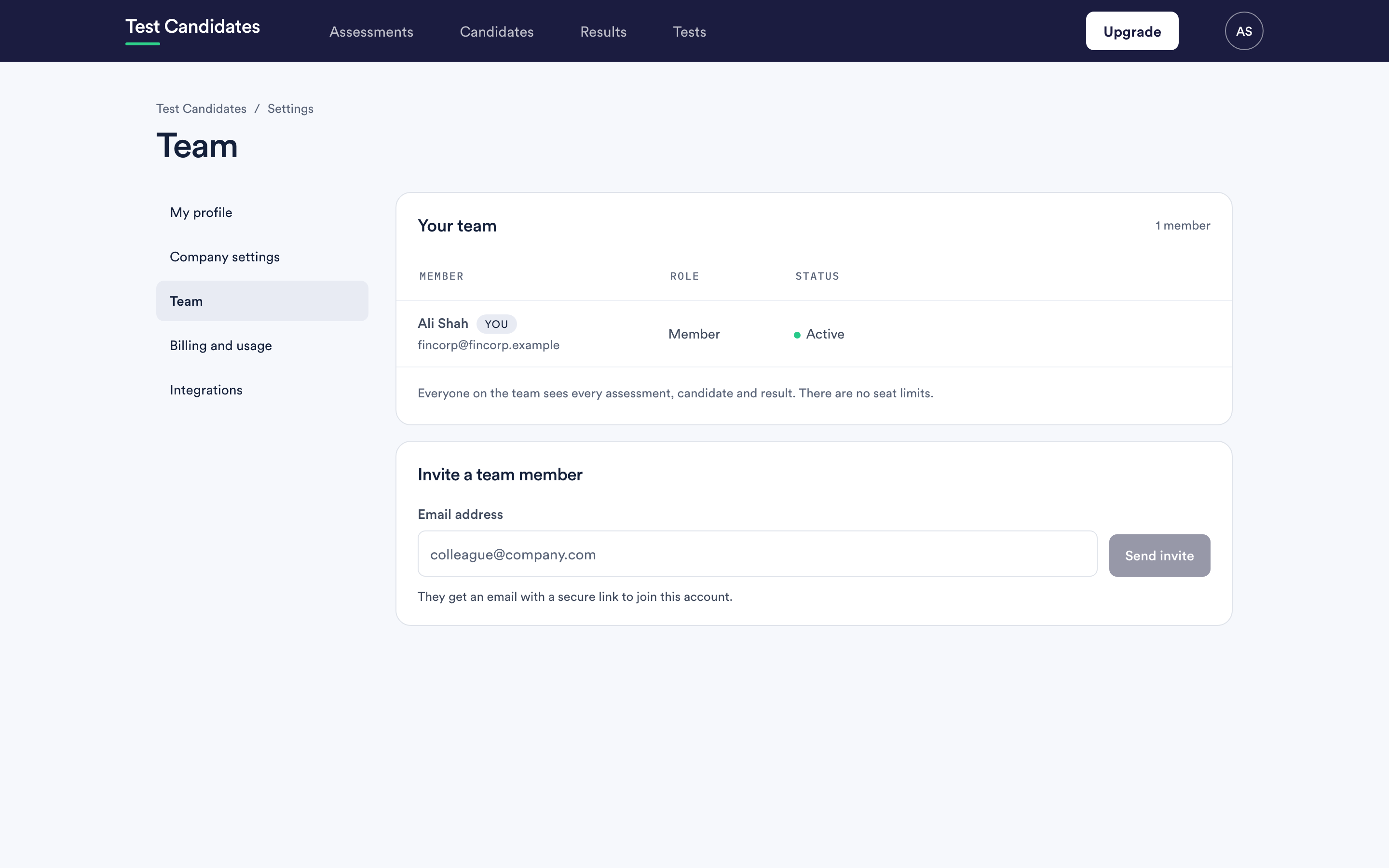
Inviting someone
Enter their email address, then choose:
- Their role. Admin or Member. It starts as Member.
- Their teams, if you use teams: All teams, or only the teams you tick. Teams decide what someone sees, whatever their role. See use teams to split up your workspace.
Send the invite. They receive an email with a secure link that takes them into your workspace. They do not need an account first, and like everyone else they never choose a password.
There are no seat limits and no per-user charge. Adding someone costs nothing. One workspace pays for everyone, so credits and billing are shared.
People who join with the join link
Someone who joins your workspace with the join link, rather than an invitation, starts as a member on All teams. An admin can change their role and teams afterwards.
The people list
Each row shows the person, their role and their status. Someone who has been invited but has not yet opened their link shows as pending until they do.
If someone never gets their invitation, check the address, then check spam, then send it again. It behaves like every other email we send, so making sure our emails arrive applies.
Changing someone's role or teams
An admin can make a member an admin, or an admin a member, and change their teams in the Teams column. Taking someone out of their last team leaves them with no teams, so they see no assessments until you give them a team or All teams.
In a workspace that already existed before roles, everyone starts as an admin. The rules only start to apply once an admin makes someone a member or creates a team.
Removing someone
Removing a person ends their access to the workspace straight away.
What stays: everything they did. Assessments they built, candidates they invited, decisions they recorded and notes they wrote are all kept, because removing someone should not put a hole in your hiring record.
What goes: their access. They can no longer sign in to your workspace or see any of it.
Two guards worth knowing about
- You cannot remove yourself from the workspace.
- Two people cannot remove each other at the same moment and leave the workspace without anyone in it. The check is atomic, so one of the two removals will fail rather than both succeeding.
Someone who has left the company
Remove them the day they leave. Until then they can still see everything their role and teams allow. See what admins and members can see.
Their own assessments carry on working. Nothing is attached to their session.
Someone who only needs one shortlist
You could add them as a member of one team. Or you could send them a downloaded report or an exported comparison instead, which needs no account at all.