Account menu, then My profile.
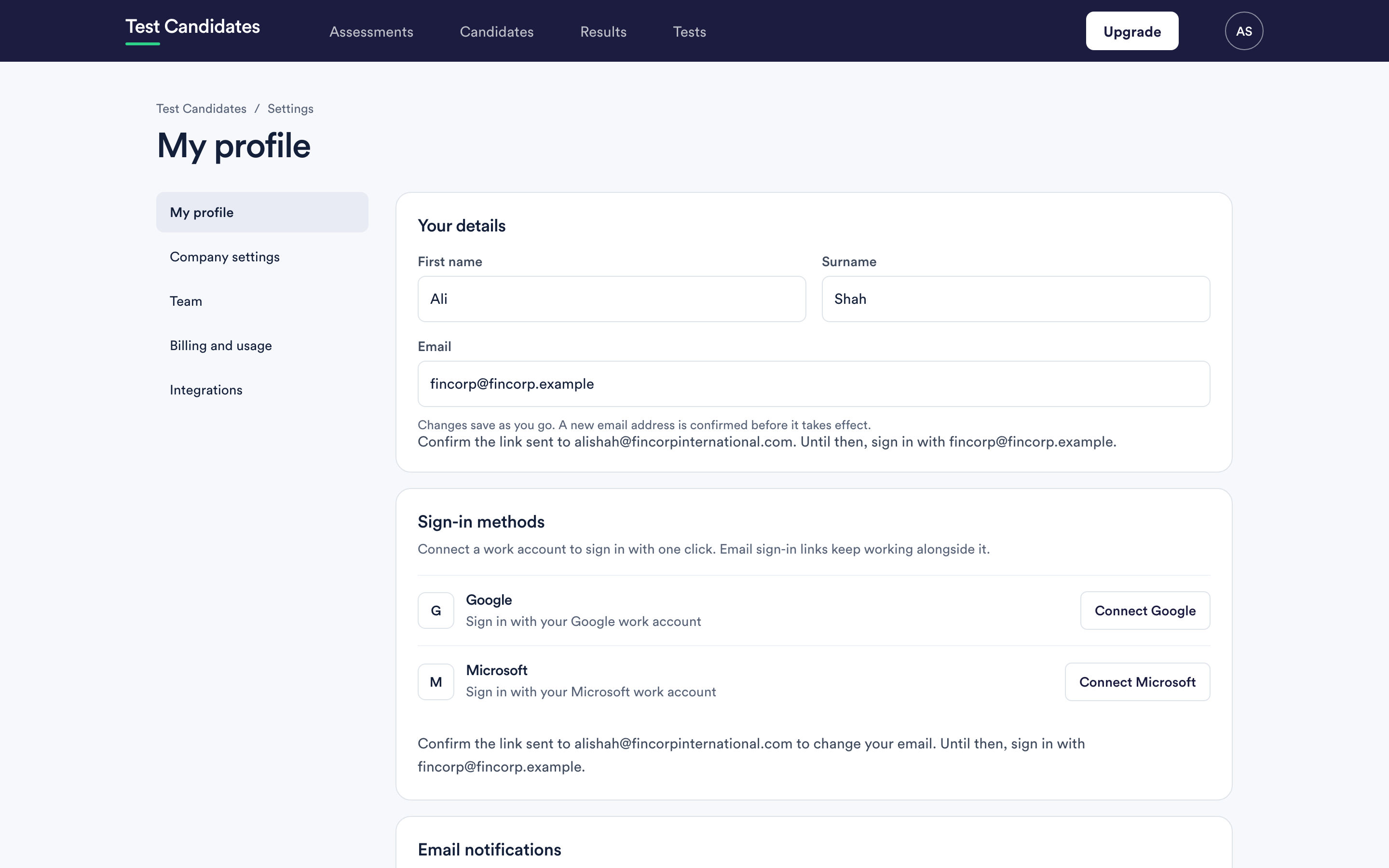
Changing your name
First name and surname. Changes save as you go, so there is no save button to look for.
Your name appears to your colleagues on the People page and against assessments you created. Candidates do not see it; they see your company name.
Your email address
This is both where we write to you and how you sign in, so changing it is done carefully.
Enter the new address and we email a confirmation link to it. The change takes effect when you open that link, and until then the page tells you plainly: confirm the link we sent, and in the meantime sign in with your old address.
That means:
- Keep using the old address to sign in until you have confirmed.
- If the link does not arrive, check spam, then enter the address again to send a fresh one. A typo in the new address is the usual cause, and it is harmless because nothing has changed yet.
- You cannot lock yourself out by mistyping it, because the old address keeps working until the new one is proved.
Proving a new address signs out other devices on your account. That is deliberate, and it means someone who got hold of a sign-in link cannot keep the session after you take the address back.
Sign-in methods
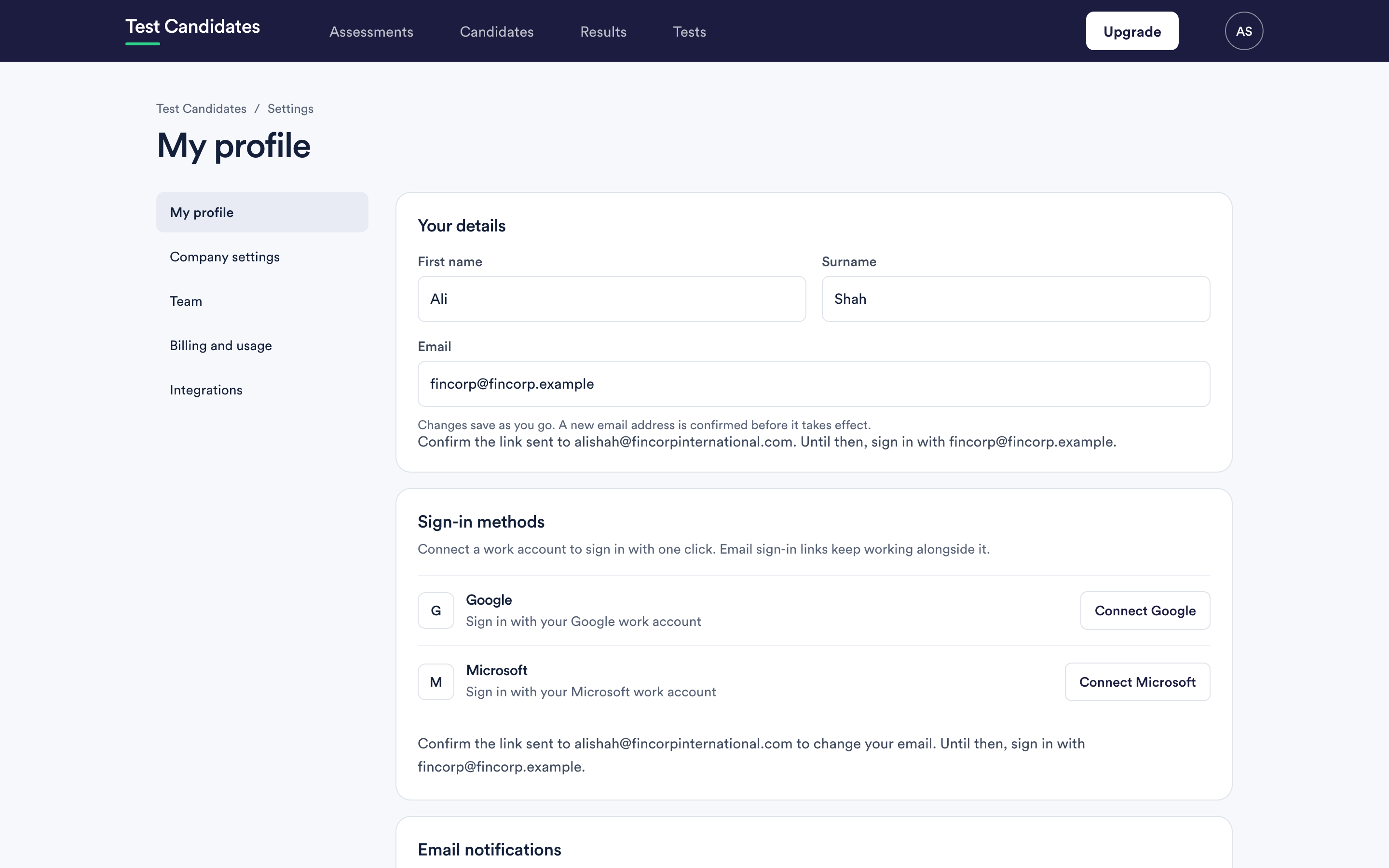
Connect a Google or Microsoft work account and you can sign in with one click. Email sign-in links keep working alongside it, so connecting one is not a commitment.
Disconnecting signs out any other device currently signed in to the account, and you can reconnect at any time. See signing in.
Your notification settings
Below that, your own email notifications. They are per person, not per account. See email notifications.
What is not here
Your company name, logo and candidate-facing content are in Company settings, not here. See your company name and details.