Test Candidates opens on your assessments. There is no separate dashboard, which is deliberate: the assessments list is the thing you come back to.
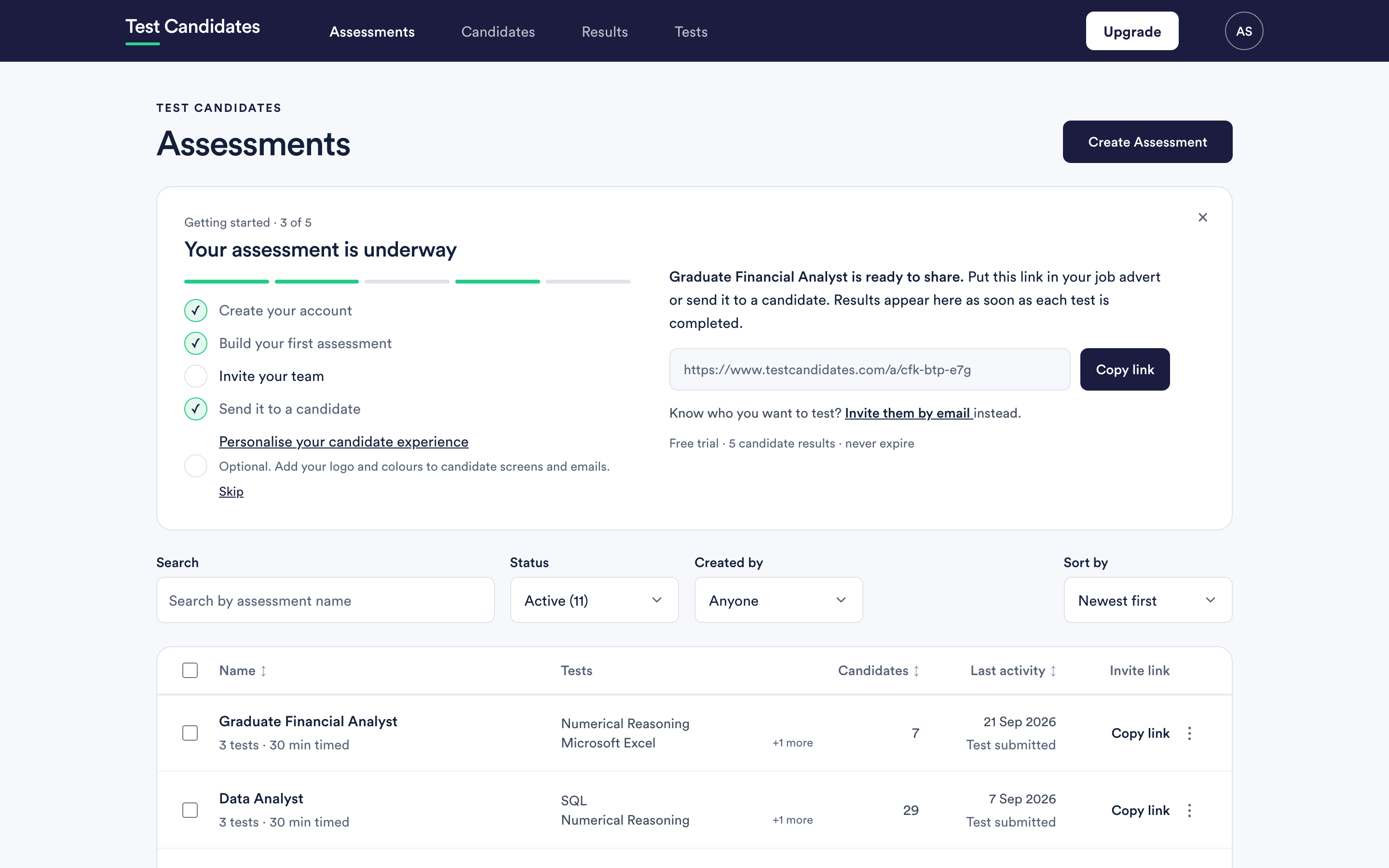
The five places in the navigation
Assessments is home. Every assessment you can see, active or archived, with its tests, its candidate count, when it was last used and its invite link. This is where you create, rename, duplicate and archive them.
Candidates is everyone who has registered for any of your assessments, in one list. Filter by assessment, by how far they have got and by the decision you have recorded. Use this when you are thinking about a person rather than a role.
Results is one row per test taken, rather than one per person. Use it when you want to look across a single test, unlock a batch of results at once, or export.
Tests is the library: every test available to you, with a full guide on each one explaining what it measures and how to read a score. You can browse it without building anything.
Your account menu, under your initials, holds My profile, Company settings, People, Teams, Billing and usage, Integrations, and Help and support. Company settings, Teams, Billing and usage and Integrations appear for admins only. See what admins and members can see.
Where things actually are
| Looking for | Where it is |
|---|---|
| The link to send candidates | Assessments, in the Invite link column, or the assessment page |
| One candidate's full report | Candidates, then the candidate, or Results, then View report |
| Your logo and colours | Account menu, Company settings |
| Who else is in the workspace | Account menu, People |
| Your teams | Account menu, Teams |
| What you have spent | Account menu, Billing and usage |
| Your API key and webhooks | Account menu, Integrations |
| Extra time and deadlines | The assessment, Edit, then Optional settings |
A page that comes up blank
Occasionally a page renders as an empty shell under the navigation. Reload it and it comes back. It is not a sign that you have been signed out, and nothing is lost.